
Quick-Start Assistant
Immediately after the first successful activation of your license, the Quick-Start Assistant opens automatically. It guides you through the basic setup in three simple steps so you can start recognizing parts right away.
Open Assistant Manually
Step 1: BrickLink API Keys
BLAPI-Core needs to communicate directly with your BrickLink shop to synchronize inventory, generate price suggestions, and later verify uploads. To do this, you need your own API keys from BrickLink.
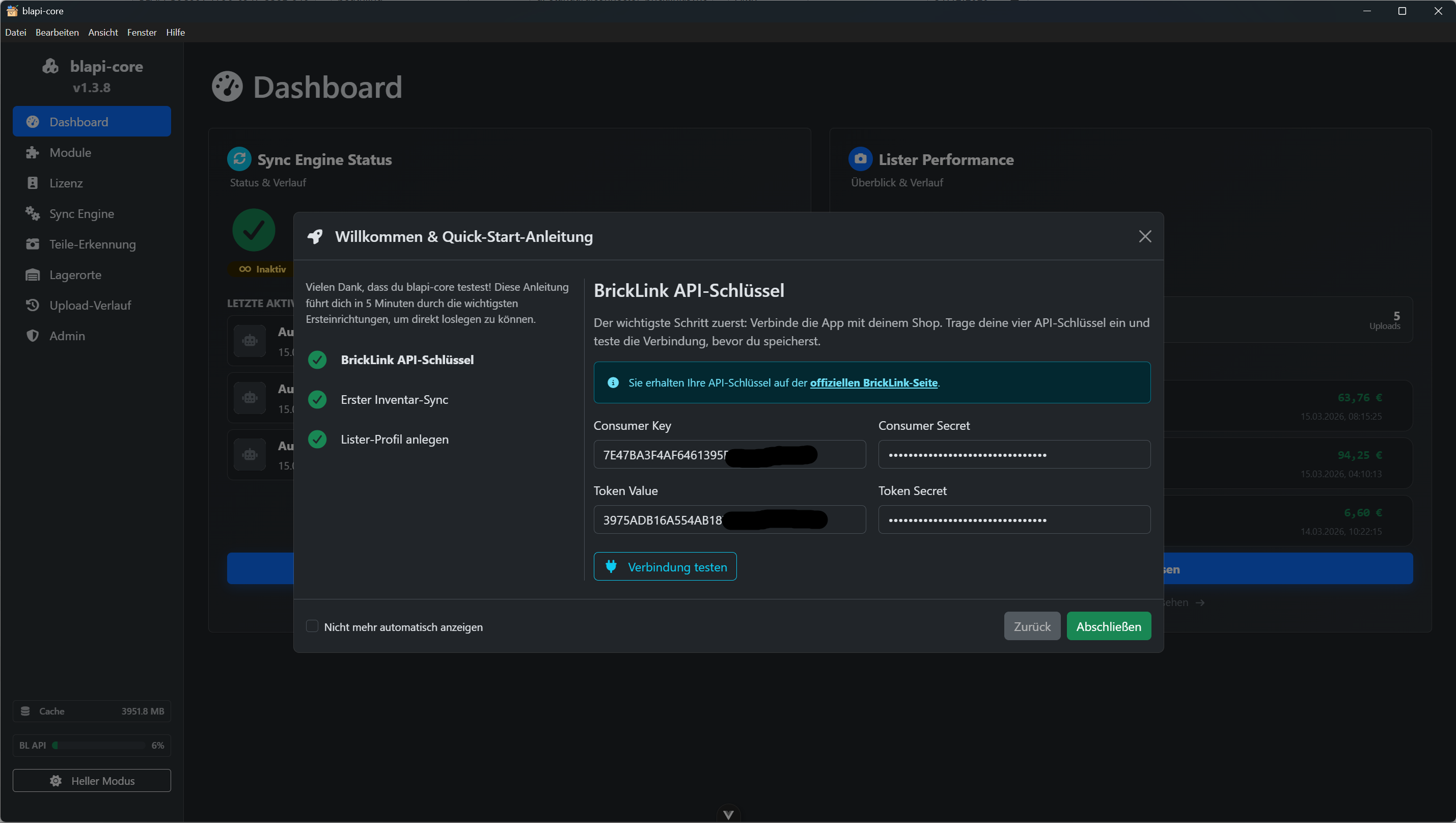
How to create your API keys:
- Click on the link to the official BrickLink page in the assistant (or log into your BrickLink account and navigate to My Store ➔ API).
- If you haven't already, agree to the API Terms of Use.
- Create a new "Connection".
- IMPORTANT: When asked for the "IP Address" and "IP Mask", you MUST enter
0.0.0.0in both fields so that BLAPI-Core is allowed to access from your local network!
Enter keys into the app: Now copy the four generated values (Consumer Key, Consumer Secret, Token Value, Token Secret) into the corresponding fields in the assistant.
Then, you must click the Test Connection button. Only when the test is successful (green message) will the "Save & Continue" button become active.
Step 2: First Inventory Sync (Initial Sync)
So that the software knows what you already have in stock, it must download your entire inventory from BrickLink once.
Warning for a repeat sync
Click on the button to start the sync. You will now see a live log (a black text window). Here you can follow live as the app:
- Downloads the current BrickLink color palette,
- Updates the global categories,
- And finally imports your entire inventory.
As soon as the process is complete and a green checkmark appears, you can proceed to the final step.
Step 3: Create Lister Profile
Profiles are the core of organization in the part recognizer (Lister). Each profile represents its own queue for the upload.
This is particularly useful if you want to process multiple bulk lots or purchases at the same time, but upload them to BrickLink separately.
- Give the profile a meaningful name (e.g., "Standard", "Bulk eBay August", or your own name).
- Click Save.
(Note: If a profile already exists, this step will be marked as already completed for you).
Completion
Click Finish at the bottom right. If you do not want to see the assistant automatically the next time you start the app, check the box Do not show automatically again at the bottom left beforehand.
Congratulations! 🎉 Your system is now fully set up and connected to your BrickLink shop. In the next chapter, we will look at how the Part Recognition workflow works.