
Sync Engine
The Sync Engine is the invisible heart of BLAPI-Core. It works in the background to ensure that the parts you capture via the Lister are uploaded to BrickLink and your local inventory remains synchronized with your online shop.
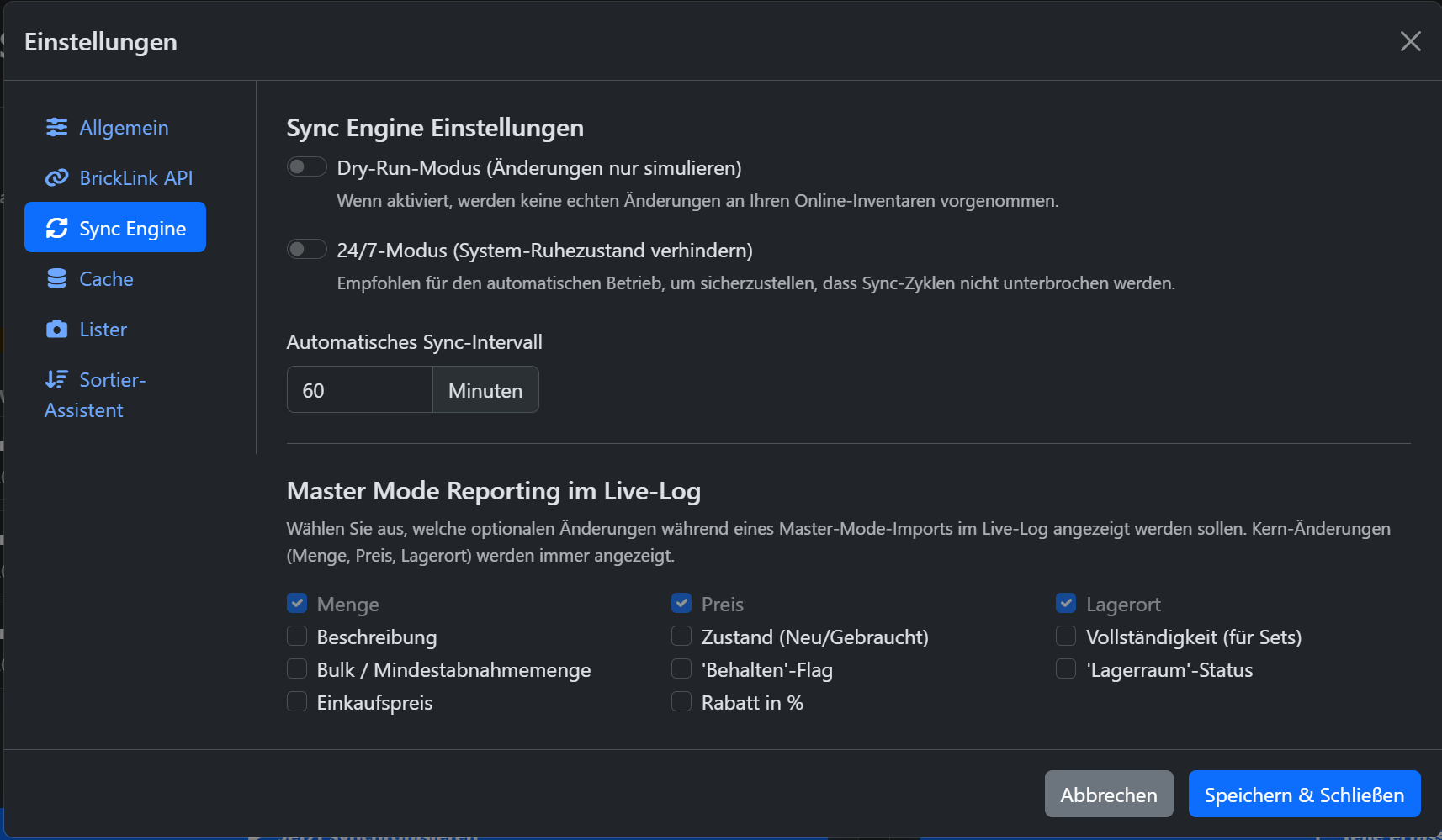
1. Operating Modes
You can control the behavior of the Sync Engine via two important switches:
Dry-Run Mode (Simulate changes only) When this mode is active, the software pretends to work but sends no real changes to BrickLink. Recommendation: Leave this mode active for your first attempts until you feel confident with the workflow. Only turn it off when you really want to make live uploads!
24/7 Mode (Prevent system sleep) When enabled, BLAPI-Core blocks your PC from going into standby mode as long as the app is open. This is important if you want to let the app run continuously so that the automatic synchronization cycles are not killed by the operating system.
2. Automatic Sync Interval
Here you set how often the software should automatically knock on BrickLink's door to check for new orders or changes.
Important: Save your API limit!
An interval of 60 minutes is perfectly adequate for the vast majority of sellers. An interval that is too short (e.g., 3 or 5 minutes) wastes your daily limit on useless empty queries. The app synchronizes at exactly the right moment anyway, at the latest when you actively scan or prepare uploads.
3. Master Mode Reporting in Live-Log
The "BL Master Mode" is a special mode that you use when you make manual changes directly on the BrickLink website (e.g., a large inventory count) and then want to import these changes into BLAPI-Core.
When the import is running, the app shows you exactly what has changed in the Live-Log. Since this quickly becomes confusing for large shops, you can filter here:
- Quantity, Price, Location: These three core values are extremely important and are always mandatory shown in the log by the system as soon as they change.
- Optional Fields: You can check or uncheck all other fields (such as Description, Condition, Purchase Price, or Discounts) as you wish. They will then only appear in the log if you have checked the box. This keeps your live log clean and focused!