
Cache (Temporary Storage)
BLAPI-Core loads hundreds of images and massive amounts of pricing and catalog data in the background. To ensure you don't have to wait for the internet every time you scan parts on the assembly line, the app features an extremely powerful local caching system.
The golden rule here is: The longer you use the Lister, the faster it gets, because more and more data can be loaded instantly from your own hard drive!
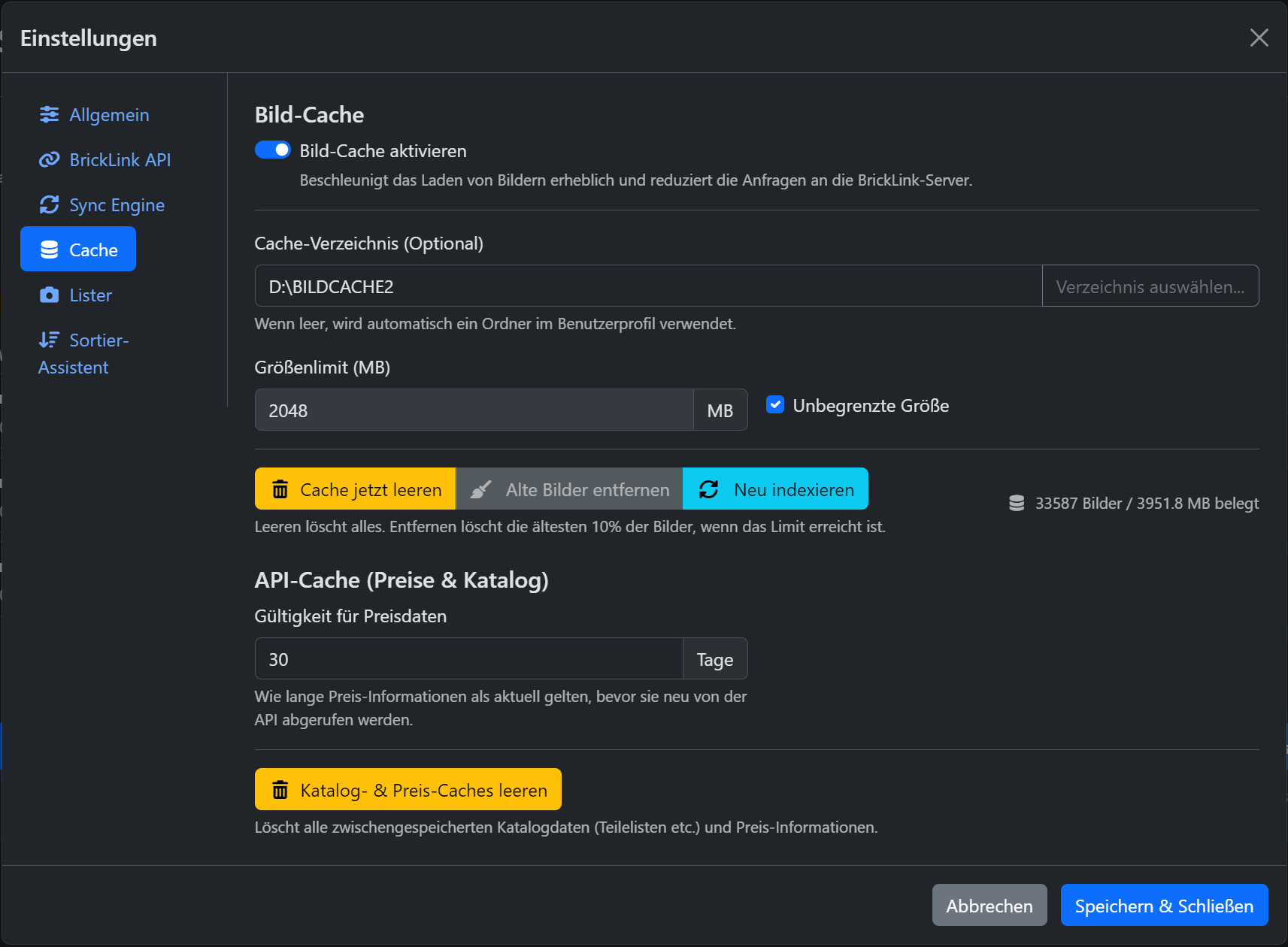
1. Image Cache
Downloading images from BrickLink costs time and bandwidth. The image cache permanently saves downloaded images on your computer.
An absolute win-win situation
We strongly recommend leaving the image cache always enabled! This dramatically speeds up the display of images in the app (load time under 1 millisecond) and simultaneously reduces the load on BrickLink's servers, which benefits us all as a community.
- Cache Directory: By default, the app saves the images in your user profile. If you have a small system drive, you can move the folder here to an external hard drive (e.g.,
D:\IMAGECACHE2). - Size Limit: You can define how large the folder is allowed to get (e.g., 2048 MB = 2 GB). When the cache reaches this limit, the app automatically deletes the oldest 10% of the images (or you can click Remove old images manually).
- Re-index: Very useful if you change computers. You can copy your existing cache folder to the new PC, select it here as the directory, and click Re-index. The app will then immediately add all images back to its database without having to download them again.
2. API Cache (Prices & Catalog)
In addition to images, BLAPI-Core also caches the actual catalog data (e.g., the part lists of minifigures) and the "Price Guide".
- Validity for price data: Here you determine after how many days the price data for an item is considered "outdated" and requested again from BrickLink. The default value of 30 days is a very good compromise between current prices and maximum speed.
Beware of intervals that are too short!
Do not set the validity too short (e.g., to 1 or 2 days). The price data for a single, very popular item can quickly become 4 to 5 megabytes (!) in size on BrickLink.
If the app has to download this data from the internet every single time you scan, it will noticeably delay your workflow by several seconds per part. If the data comes from the cache, the result is there instantly.
If the app has to download this data from the internet every single time you scan, it will noticeably delay your workflow by several seconds per part. If the data comes from the cache, the result is there instantly.
- Clear Catalog & Price Caches: If you feel that the displayed prices for a specific set or part are completely outdated, you can use this button to manually clear the entire data cache and force a fresh download.