Completing Minifigures with BrickStore
Complete figures often yield significantly better margins than individual parts. Here you will learn how to use BrickStore to analyze your inventory and systematically assemble loose parts into complete figures.
1 Select Minifigure Parts
Open BrickStore and load your current inventory. Sort the inventory by category. Select the categories "Minifigure, Part" or "Minifigure" in your inventory. Ensure that all parts belonging to minifigures are displayed and selected.
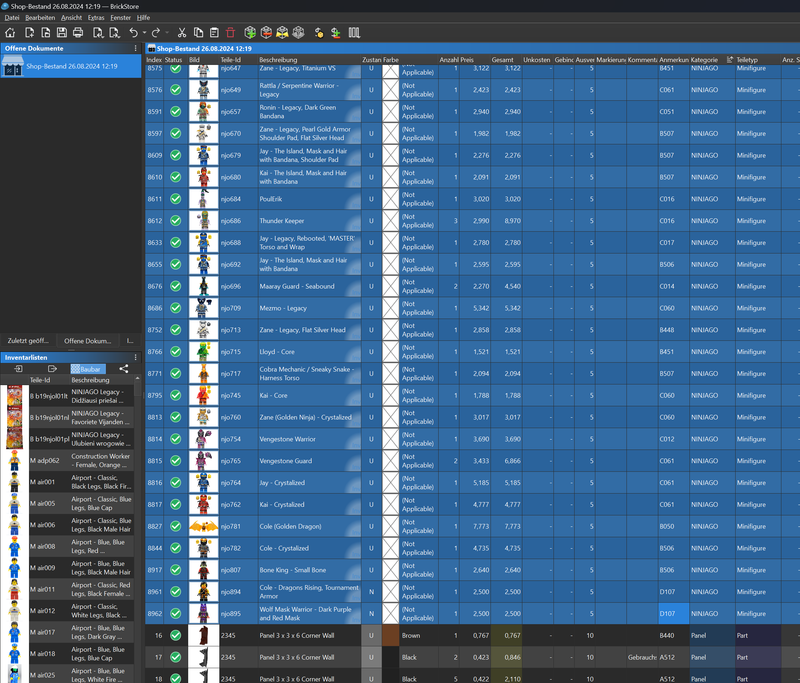
2 Use the "Buildable" Function
Highlight all minifigure parts you want to complete. Use the "Buildable" function to find out which minifigures you can fully or partially assemble with the selected parts. A list of possible minifigures will be displayed.
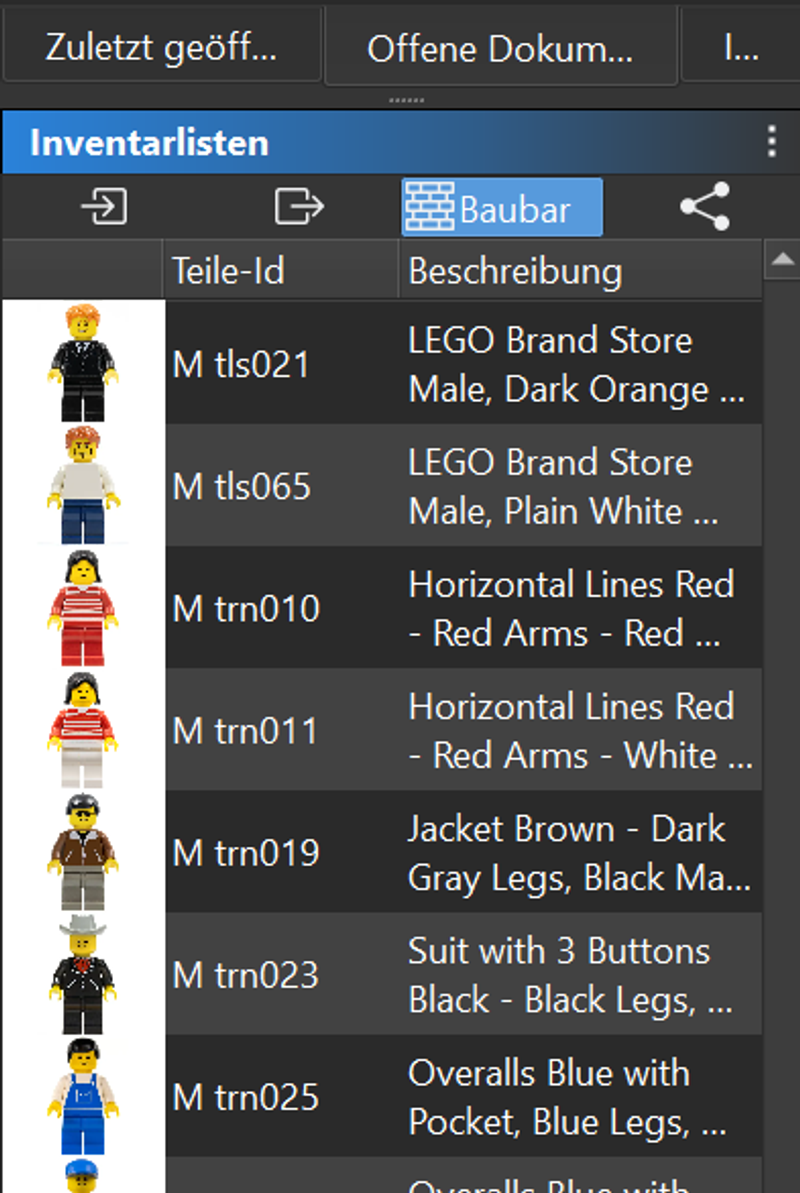
3 Copy to the "Add Item" Window
Double-click on one of the displayed minifigures in the "Buildable" list to select it. This minifigure will now be copied into the "Add Item" window.
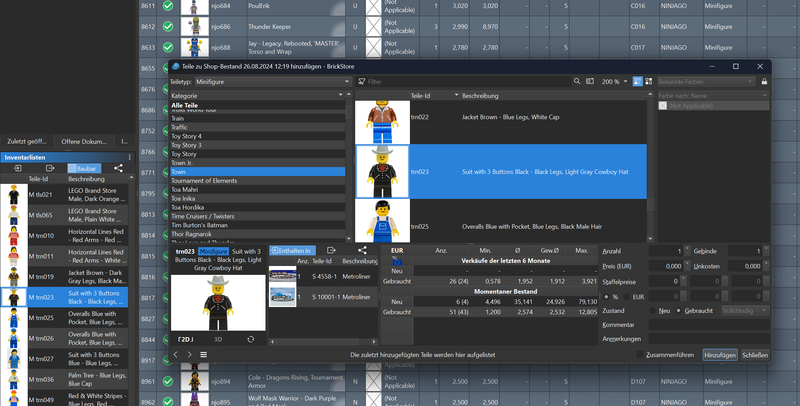
4 Open a New Window
Open a new BrickStore window (File > New). Paste the selected minifigure into this new window.
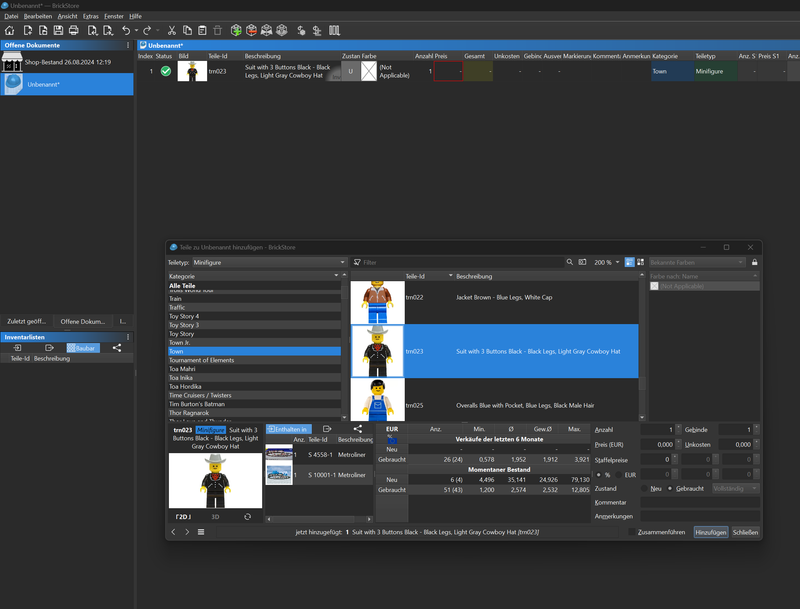
5 Disassemble the Minifigure
Right-click on the minifigure in the new window and select "Part Out". The minifigure will be disassembled into its individual parts, and all components will be clearly displayed in the new window.
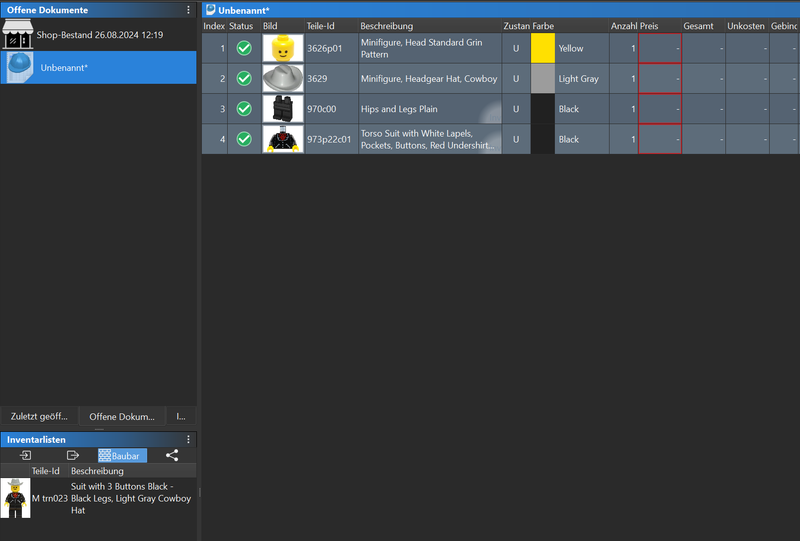
6 Copy Parts and Delete from Inventory
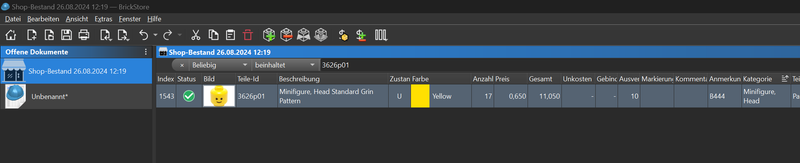
Double-click on the item number of one of the parts to copy it (Ctrl + C). Switch back to your inventory window. Press Ctrl + F to open the search function.
Press Ctrl + V to paste the item number, and search for the part in your inventory. Once the part is found, delete it from your inventory (Right-click > Delete or Del key) – or adjust the quantity down accordingly. Repeat this step for each part of the disassembled minifigure.
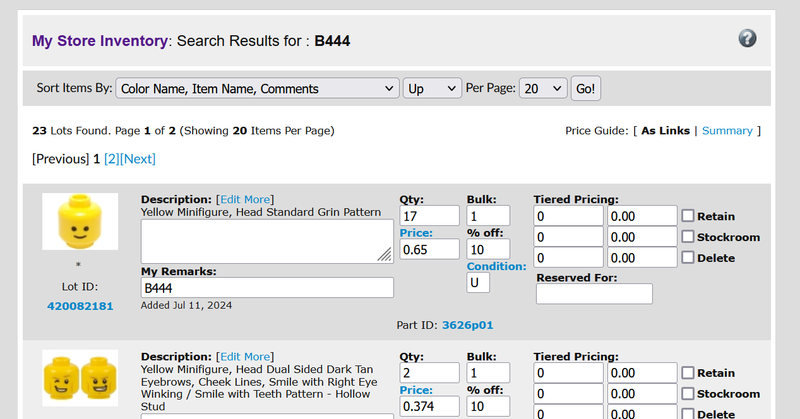
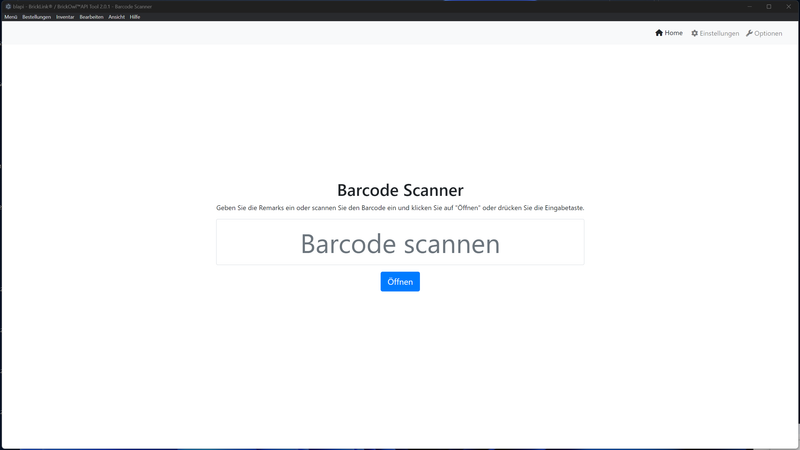
When picking the parts, directly use the barcode scanner in blapi (remarks can also be entered manually) or the BrickLink inventory list manually to adjust the stock directly on BrickLink.
7 Reassemble the Minifigure
After all corresponding individual parts have been deleted from your inventory, return to the new window where the disassembled minifigure is displayed. Press Ctrl + Z (Undo) to completely reassemble the minifigure.
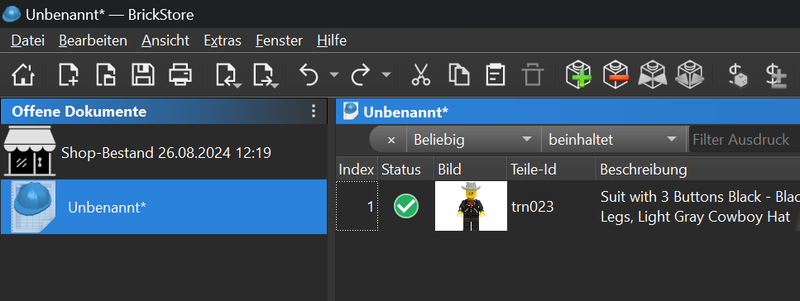
Finish & Save
Now you can either save the completed minifigure to add it to your inventory or export it as a separate file. Repeat this process for all other minifigures you want to complete from your loose parts inventory.
- Create a Backup: Before starting this massive process, it is recommended to create a backup of your inventory (as a .bsx or in blapi Audit) in case you want to undo adjustments later.
- Physical Check: After completing the minifigure, it is advisable to briefly check your physical inventory (the drawers) to ensure there are no counting errors.